
Krakoman

Krakoman is a graphical translator for the KDE desktop that works fully offline. Type or paste text, and the translation follows as you type; documents, subtitles and text on screen are translated too. It does no translation itself: everything goes through the Dragomand daemon, so no text leaves the computer and the models are shared with every other integration.
It is developed as its own project, Krakoman, and packaged in the same repository as Dragomand.
Requirements
Dragomand 0.2 or newer. Krakoman talks to the daemon over D-Bus, and
the daemon starts on demand. The package depends on dragomand, so
installing Krakoman installs the daemon too.
KDE Frameworks 6. Krakoman is a Kirigami application for Qt 6.8 and KDE Frameworks 6.13 or newer. It runs on any desktop, though the system tray icon and the global shortcut work best on KDE Plasma.
Install
Add the Dragomand repository first, as described on the
Install page, then install the krakoman package:
sudo zypper install krakomansudo dnf install krakomansudo apt install krakomansudo pacman -S krakomanPackages are built for x86-64 everywhere and for 64-bit ARM wherever the repository has ARM builds. Krakoman then appears in the application menu as Krakoman, an offline translator.
Translating text
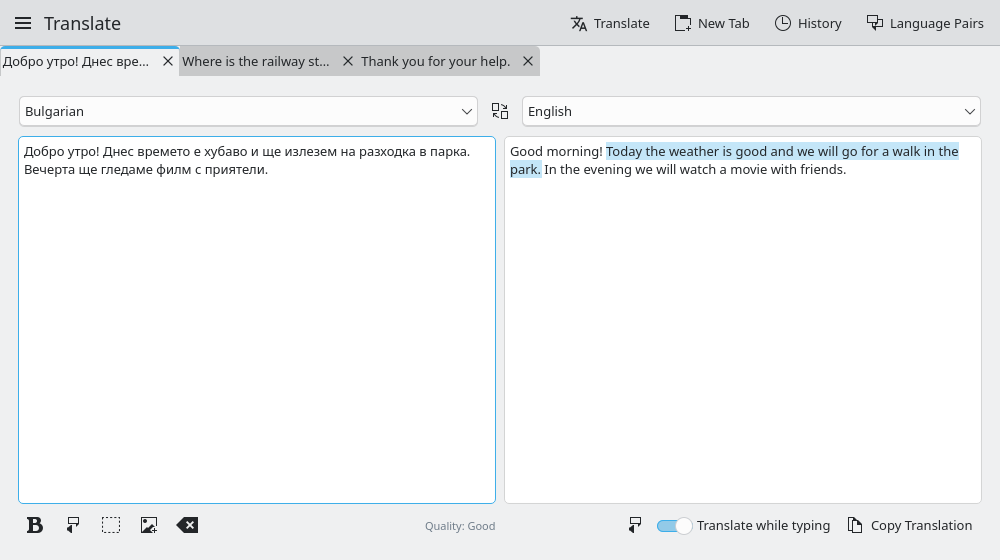
Choose the two languages at the top, then type or paste the text. The translation follows after a short pause; with Translate while typing turned off, press Ctrl+Return.
- Tabs. Several translations stay open in tabs (Ctrl+T opens one, Ctrl+W closes it), each with its own languages. Only the visible tab translates while you type, and the tabs return on the next start.
- The direction is detected. Text in the target language swaps the two languages; text in a third language offers to translate from it.
- Formatting. Pasted headings, bold, italic, links, lists and tables can be kept, and the translation keeps them too.
- Matching sentences. In plain text, the sentence under the cursor is highlighted in the translation.
- Read aloud and spelling. Both texts can be read aloud, and the source text is spell checked in its language, when a speech engine and a dictionary for the language are installed.
- Pivoting and quality. When no direct model exists the daemon translates through English, and the page says so. Each language pair shows the quality score of its model.
A language pair that is not installed yet is never downloaded while you type: the page reports it and offers Install and Translate. After the download the pair works offline.
Keyboard shortcuts: Ctrl+Return translates, Ctrl+L goes to the text, Ctrl+Shift+S swaps the languages, Ctrl+Shift+C copies the translation.
Text on screen and in images
Read Text on Screen lets you pick a part of the screen and translates the text in it; Read Text from an Image does the same for an image file. The text is recognized offline with Tesseract. On KDE Plasma the screen region is picked with Spectacle, elsewhere through the desktop's screenshot dialog.
Tesseract needs the data for the language you read. English is recommended by the package; install others the same way:
| Distribution | Package for Bulgarian (bul) |
|---|---|
| Fedora | tesseract-langpack-bul |
| Debian and Ubuntu | tesseract-ocr-bul |
| Arch Linux | tesseract-data-bul |
openSUSE
The openSUSE packages are built without text recognition, because openSUSE's current Tesseract library crashes whenever it finishes reading, so the two commands are not shown there. They return with a later package once Tesseract is fixed.
Documents and subtitles
Translate a Document… in the main menu translates plain text,
Markdown, SubRip (.srt) and WebVTT (.vtt) files. Only the text is
translated: code, links, numbering, timings and speaker tags stay as
they are. Save As… suggests the original's name with the target
language added, such as talk.en.srt. The document goes to the daemon as a file, not over D-Bus, so
large files are fine.
Documents can also be sent to Krakoman from Dolphin's context menu (Translate with Krakoman), from the Share menu of KDE applications, or from a terminal.
History and phrasebook
Translations are kept in a history on this computer, which can be turned off in the settings. Starred translations form a phrasebook and survive Clear History.
On the desktop
- System tray. With Keep running in the system tray turned on, closing the window leaves Krakoman in the tray.
- Translate the selected text. Meta+Alt+T in any application translates the selected text in Krakoman. The shortcut can be changed in System Settings, under Shortcuts.
- Translate copied text. Optionally, whatever you copy is translated.
Language pairs and status
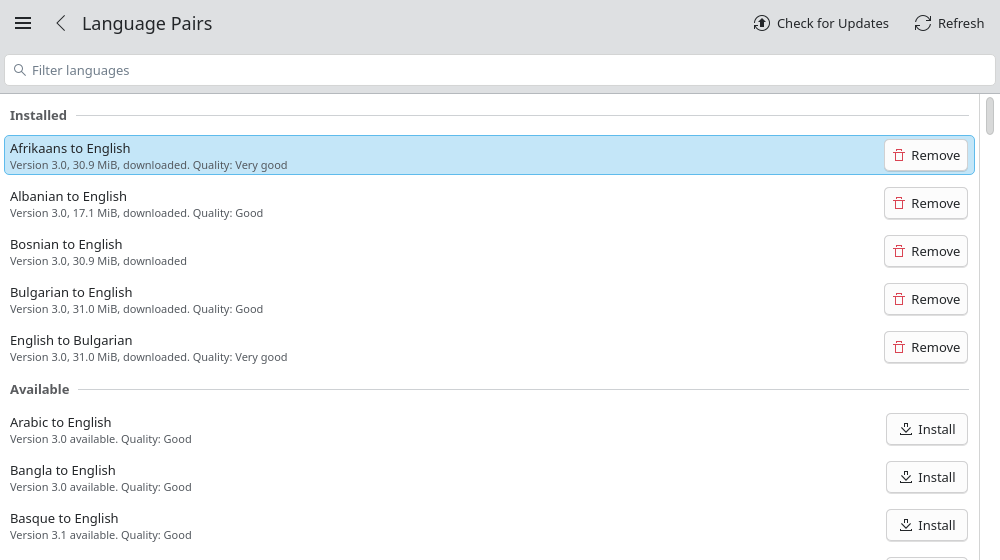
Language Pairs in the main menu lists every pair Mozilla publishes, installed or not, with its version, size, origin and quality. Pairs can be installed, updated and removed there, and the provider checked for updates.
Daemon Status shows the daemon's version, memory in use, queued requests and loaded pairs. It is fetched when you open the page, never in the background, so that an idle daemon can still exit.
Command line
The command line fills in the window, and a second launch hands its arguments to the window that is already open:
krakoman --source bg --target en "Добро утро"
krakoman --document talk.srt
Build from source
Building needs CMake 3.24, extra-cmake-modules, Qt 6.8, KDE Frameworks
6.13 and libdragoman-qt. Tesseract and KDE's
Purpose framework are optional. From a krakoman checkout:
cmake -S . -B build -G Ninja -DBUILD_TESTING=ON
cmake --build build
ctest --test-dir build
sudo cmake --install build
The repository also holds a Flatpak manifest. The sandboxed build talks to the Dragomand installed on the host, and has no text recognition and no reading aloud, because the KDE runtime carries neither Tesseract nor a speech engine.
Troubleshooting
"Cannot reach the translation daemon" or "No answer from the translation daemon.": check the daemon from a terminal:
dragomanctl status
dragomanctl pairs
Read Text on Screen is missing. The package was built without Tesseract; on openSUSE that is deliberate, see Text on screen and in images.
Text recognition finds nothing, or the wrong letters. Install the Tesseract data for the language of the text, and pick a region with the text only.
Meta+Alt+T does nothing. Another application may own the shortcut; change it in System Settings, under Shortcuts. Krakoman must be running, for example in the tray.
For problems with the daemon itself, see Troubleshooting.